Snowflake
Overview
Connect Snowflake to Trust3 to enable natural language queries across your data warehouse. Trust3 supports Username/Password and Certificate (Key Pair) authentication methods.
Password Authentication Deprecation
Username and password authentication may be deprecated in future versions. We recommend switching to key pair authentication for enhanced security. See the Snowflake Key-pair Authentication Guide for more information.
Prerequisites
| Requirement | Description |
|---|---|
| Account Identifier | Your Snowflake account (format: MYORG-ACCOUNT123) |
| Username | User with full read permissions on target databases |
| Authentication | Password OR Private key (PEM format) + optional passphrase |
| Role | Role with appropriate database access (e.g., ACCOUNTADMIN) |
| Warehouse | Warehouse name (e.g., COMPUTE_WH) |
Quick Setup Process
- Navigate to Data Sources from the main menu → Click Add Data Source
- Select your data source type from the Source dropdown
- Enter a Connection Name (e.g.,
Sales Database) - Configure the connection details
- Click Test Connection to validate
- Once successful, click Add Data Source to save
Finding Required Information
Finding Your Account Identifier
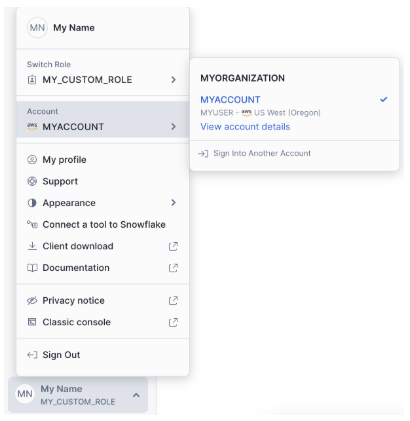
Your Snowflake account identifier follows the format: organization_name-account_name.
To find your account identifier:
- Log in to your Snowflake account
- At the bottom left, click on your user profile icon
- Select Account from the menu
- Click the "View Account Details" link for your desired account
- A popup will appear displaying your account identifier
Configuration Details
Basic Information
| Field | Description | Example |
|---|---|---|
| Connection Name * | A unique identifier for this data source connection | Production [Your Data Source] |
Connection Settings
Choose your Authentication Method and configure the fields:
| Field | Description | Example |
|---|---|---|
| Account Identifier * | Your Snowflake account identifier | MYORG-ACCOUNT123 |
| Username * | Snowflake username with full read permissions | ANALYST_USER |
| Password * | Your Snowflake password (encrypted and stored securely) | - |
| Role * | Snowflake role with necessary database read permissions | ACCOUNTADMIN, ANALYST |
| Warehouse * | Snowflake warehouse for query execution | COMPUTE_WH, ANALYTICS_WH |
Enhanced security using key pair authentication. Follow the Snowflake Key-pair Authentication Guide to generate keys and configure RSA_PUBLIC_KEY.
| Field | Description | Example |
|---|---|---|
| Account Identifier * | Your Snowflake account identifier | MYORG-ACCOUNT123 |
| Username * | Snowflake username with full read permissions | ANALYST_USER |
| Private Key (PEM) * | RSA private key in PEM format with headers | -----BEGIN/END ENCRYPTED PRIVATE KEY----- |
| Private Key Passphrase | Required only if the private key is encrypted | - |
| Role * | Snowflake role with necessary database read permissions | ACCOUNTADMIN, ANALYST |
| Warehouse * | Snowflake warehouse for query execution | COMPUTE_WH, ANALYTICS_WH |
Key Pair Authentication Setup
To configure key pair authentication, follow the Snowflake documentation to generate and configure your key pair. Make sure to use an unencrypted private key file for the connection, or provide the passphrase if using an encrypted key.
Testing the Connection
After entering your connection details click Test Connection to validate the configuration
Connection Test Successful
Once the test is successful, you can proceed to save the data source.
Connection Test Failed
If the test fails, check the Troubleshooting section below for common issues and solutions.
Managing Data Sources
Update Connection
To update your data source connection:
- Navigate to Data Sources from the main menu
- Locate the connection you want to update
- Click the Actions button (three dots) → Edit
- Modify the connection fields as needed
- Click Test Connection to validate changes
- Click Update Data Source to save
Delete Connection
To delete an existing data source connection:
- Navigate to Data Sources from the main menu
- Locate the connection you want to delete
- Click the Actions button (three dots) → Delete
- Confirm the deletion in the dialog
Permanent Deletion Warning
Deleting a data source is permanent and cannot be undone. Any queries, reports, or integrations using this data source will stop working immediately. Make sure you want to proceed before confirming the deletion.
Troubleshooting
Common Issues
| Issue | Common Causes | Solution |
|---|---|---|
| Invalid account identifier | Wrong format or extra spaces | Use format: MYORG-ACCOUNT123 (not the full URL) |
| Authentication failed | Wrong credentials or expired password | Verify username/password or private key format |
| Warehouse not found | Incorrect warehouse name | Verify warehouse name exists in Snowflake |
| Role not found | Incorrect role name | Verify role name exists in Snowflake |
| Insufficient privileges | Role lacks permissions | Grant necessary privileges to the role |
| Network timeout | Firewall or network policy | Check firewall rules and Snowflake network policies |
| Private key error | Invalid PEM format | Ensure headers -----BEGIN/END ENCRYPTED PRIVATE KEY----- are included |
Additional Checks
- Ensure username exists and has read permissions on target databases
- Verify role can access the specified warehouse
- Confirm account isn't locked due to failed login attempts
- Check network connectivity between Trust3 and Snowflake
- Verify account identifier format matches
MYORG-ACCOUNT123(organization-account, not full URL)
Next Steps
-
Manage Context
-
Data Sources Overview