Runtime planes
A runtime plane is the piece of Trust3 that runs inside your cloud account. You create it once, and every collector you configure afterwards runs inside it.
This page explains what a runtime plane is, what you need before creating one, and which of the two setup paths to choose. When you are ready to create one:
| Path | Use it when | Guide |
|---|---|---|
| Basic | Most first-time installs. The shortest path to a working runtime plane. | Basic setup |
| Advanced | You need object storage, your own DNS name, a specific secret store, or you are setting up monitoring for custom agents. | Advanced setup |
Both paths start from the same page in the portal, and you pick between them with a single radio button. Nothing is lost by starting with Basic — almost everything Advanced exposes can also be set later, from the runtime plane's Configuration tab.
What a runtime plane is, in one minute
Trust3 is split in two halves:
| Half | Where it runs | What it does |
|---|---|---|
| Control plane | Trust3 Cloud | The portal you log in to, policies, the asset inventory, dashboards |
| Runtime plane | Your own Kubernetes cluster | The collectors that reach your data sources and agents |
Your data sources are never exposed to Trust3 Cloud. The collectors run next to them, inside your network, and send back only the inventory and monitoring information the portal displays. For more on this split, see Control Plane and Data Plane.
Two names worth learning first
They show up everywhere afterwards, and both are easier to get right at the start than to change later.
- Runtime plane name
-
The name you give the runtime plane. It also becomes the Kubernetes namespace everything is installed into, it appears in internal service names, and it becomes part of the hostname of any endpoint the plane exposes.
Rules: 6 to 44 characters, lowercase letters, numbers and hyphens only, and it must start and end with a letter or number. The portal suggests
cloud-region-NNN, for exampleaws-us-east-1-871, and you can personalise it.Renaming it later means recreating the runtime plane, so pick something you can live with.
- API key (
x-pcloud-key) -
A credential generated when you create the runtime plane. The runtime agent uses it to connect back to Trust3 Cloud, and you need the same value again if you later publish a custom agent inventory with the SDK.
It is shown only once, on the final step of the wizard. Save it in a password manager before you leave that page.
What creating one looks like
Both paths — Basic and Advanced — follow the same shape, so you know what you are in for:
- Fill in a form in the portal — cloud provider, region, a name, and a prerequisites checklist. Advanced adds two more form pages.
- Click Generate. The portal produces two installation commands and an API key.
- Save the commands and the key — they are shown only once.
- Run the two commands on a terminal connected to your cluster: a
curlthat downloads avalues.yaml, then ahelm upgrade --installthat deploys the runtime agent. - Wait for the portal to show connected. You can close the browser while this happens.
Nothing in your cluster is touched until step 4, and nothing outside the runtime plane's own namespace is touched at all.
Choosing Basic or Advanced
The choice is a single Configuration Mode radio button on the first page of the wizard. It controls how many steps the wizard has:
| Basic | Advanced | |
|---|---|---|
| Steps | 1 Infrastructure Setup → 2 Deploy | 1 Infrastructure Setup → 2 Storage & Connectivity → 3 Cloud Permissions → 4 Deploy |
| Object storage (S3 / Blob / GCS) | not configured | you set it |
| DNS name for Trust3 endpoints | not configured | you set it |
| Ingress / load balancer | not configured | you set it |
| Secret store | Trust3 Cloud DB | your choice |
| Custom image registry | Trust3 image hub | your choice |
| Cloud identity (IAM role / managed identity / service account) | not needed | required if you use any of the above |
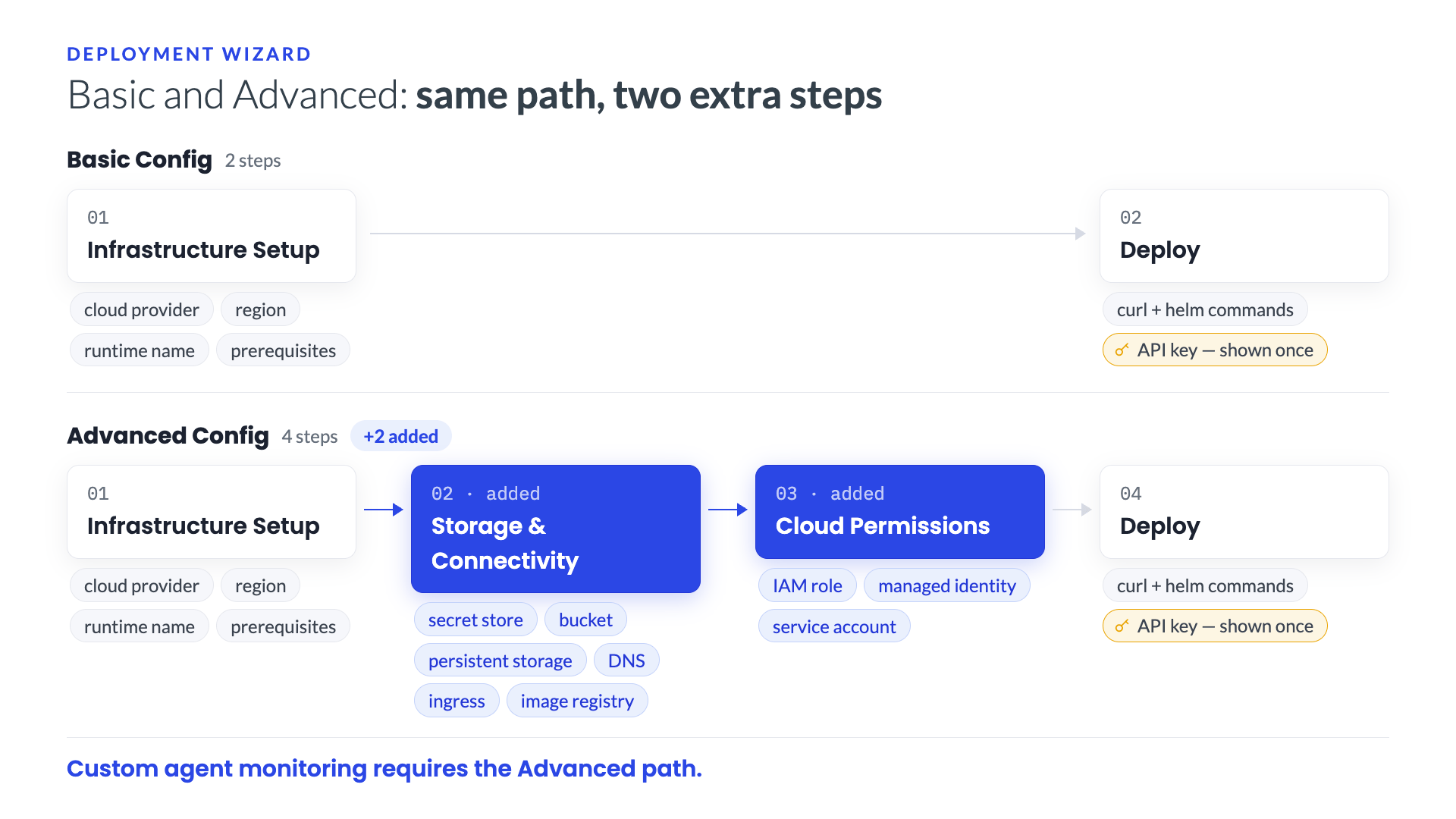
Choose Advanced if any of these apply:
- You want Trust3 services reachable at your own domain name rather than only inside the cluster.
- You want the runtime plane to use an object storage bucket you control.
- You want credentials held in Kubernetes Secrets or your cloud's secret manager instead of the Trust3 Cloud database.
- You pull container images from a private registry.
- You are setting up monitoring for custom agents. That feature needs storage, DNS, ingress, and a cloud identity, so Advanced is mandatory.
Otherwise, Basic is the right choice.
One decision is worth making up front
The secret store is the setting least pleasant to change later, because moving credentials between stores means re-entering them. Everything else on the Advanced steps can be added afterwards from the runtime plane's Configuration tab.
Before you begin
These apply to both setup paths. You need three things: a cluster, the tools to talk to it, and the right role in the portal.
1. A Kubernetes cluster
| Requirement | Detail |
|---|---|
| Cluster | EKS, Kubernetes v1.34 or later |
| Nodes | r5.2xlarge, autoscaling 1–10 nodes |
| Metrics Server | Installed and running (needed for monitoring and autoscaling) |
| Requirement | Detail |
|---|---|
| Cluster | AKS, Kubernetes v1.34 or later |
| Nodes | Standard_E8s_v3, autoscaling 1–10 nodes |
| Metrics Server | Installed and running (needed for monitoring and autoscaling) |
| Requirement | Detail |
|---|---|
| Cluster | GKE, Kubernetes v1.34 or later |
| Nodes | n2-standard-8 or equivalent, node pool autoscaling 1–10 nodes |
| Metrics Server | Installed and running (needed for monitoring and workload autoscaling) |
2. A terminal that can reach the cluster
You must be able to run kubectl and helm against the cluster with cluster-admin permissions. On GKE, Kubernetes Engine Cluster Admin or equivalent is enough.
Install these command-line tools first:
AWS CLI v2.12.0+, kubectl v1.34+, Helm v3.9.0+, and curl or wget.
Azure CLI v2.50.0+, kubectl v1.34+, Helm v3.9.0+, and curl or wget.
Google Cloud SDK 450.0.0+, kubectl v1.34+, Helm v3.9.0+, and curl or wget.
3. The Account Admin role in the Trust3 portal
Settings → Runtime is only visible to account administrators. If you cannot see it, ask your Trust3 administrator before going further.
You do not have to prepare the cluster by hand
The wizard shows a prerequisites checklist for your cloud provider, with a Download Script button that downloads a script performing the preparation steps for you. Each item also has a View full details link with the manual instructions, if you would rather do it yourself or hand it to whoever owns the cluster.
With those three in place, you are ready to create the runtime plane: Basic setup or Advanced setup.
After the runtime plane is running
Open it from Settings → Runtime and use its tabs:
- Collectors — add an AI Assets Collector and point it at your data sources or agents. See Run Collector.
- Configuration — review or change plane-level settings after creation.
If you are here to govern agents you built yourself, continue with Monitoring custom agents.