Runtime plane — advanced setup
Advanced Config is the same wizard as Basic setup with two extra steps inserted before the deploy step. Everything on those two steps is optional, so Advanced is not a harder path — it is the same path with more of it visible. This page is self-contained: the steps it shares with the Basic path are reproduced here, so there is no need to switch between them.
| Basic | Advanced |
|---|---|
| 1 Infrastructure Setup → 2 Deploy | 1 Infrastructure Setup → 2 Storage & Connectivity → 3 Cloud Permissions → 4 Deploy |
If you are not sure this is the path you want, see Choosing Basic or Advanced on the overview page. Work through Before you begin first — a cluster that meets the requirements, kubectl and helm access to it, and the Account Admin role in the portal.
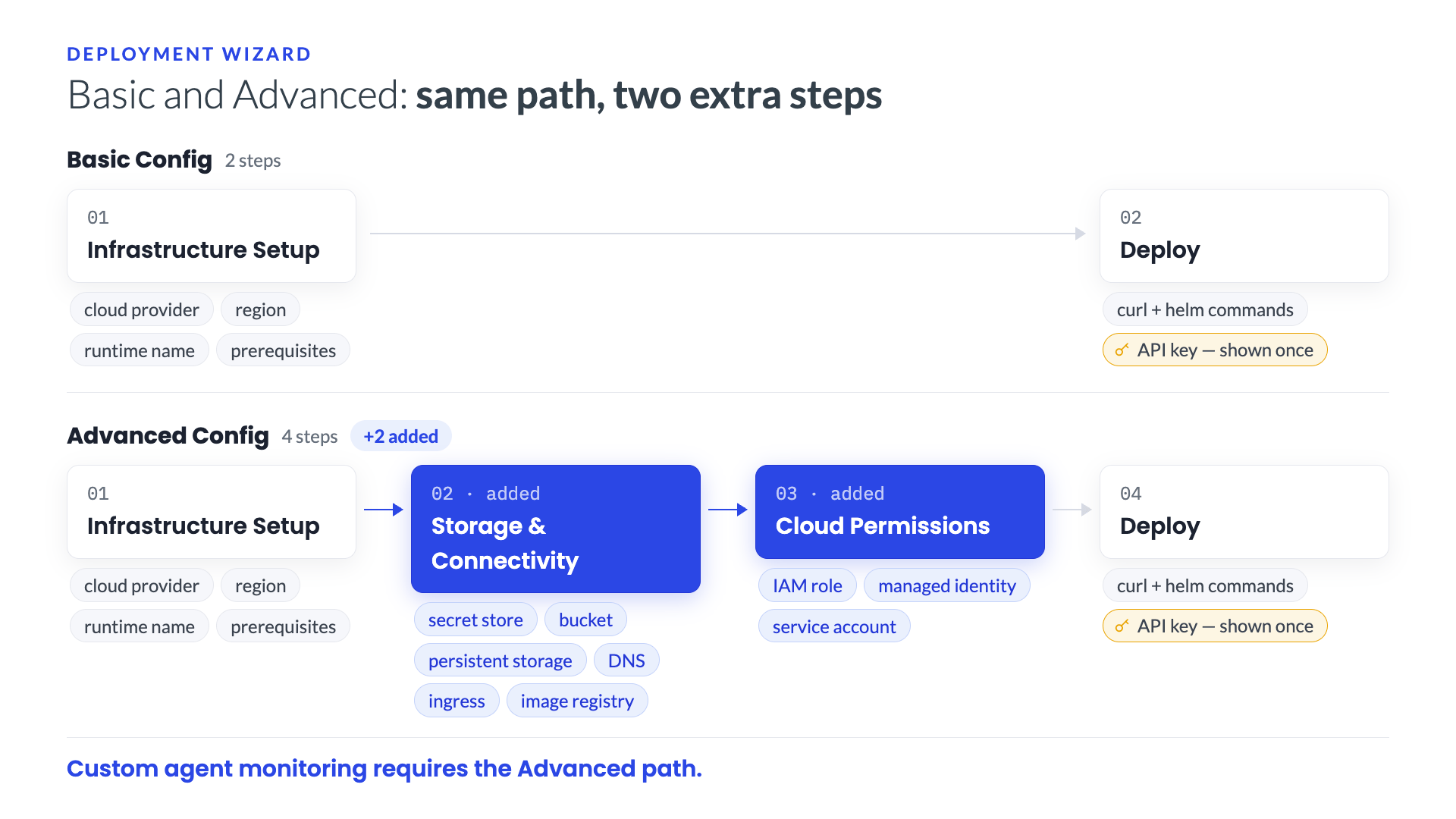
You can add most of this later
Everything on the Storage & Connectivity step can also be set after the runtime plane is running, from its Configuration tab. Advanced simply lets you get it right the first time. The one thing worth deciding up front is the secret store, because moving credentials between stores later means re-entering them.
Setting up custom agent monitoring? Five fields on this page are mandatory
Everything on this page is optional except when you are configuring monitoring for custom agents. That feature needs a specific set of fields, and if any is missing the collector accepts the toggle, the deploy succeeds, and you get no endpoint and no error.
Those fields are flagged Required for custom agent monitoring as you go, and listed together in What custom agent monitoring needs at the end of this page — read that first if you would rather see the whole list before you start.
Step 1 — Open the wizard and fill in Infrastructure Setup
- Log in to the Trust3 AI portal.
- In the left sidebar, click Settings.
- In the Settings menu, click Runtime.
You are now on Runtime Environments. Any runtime planes you already have are listed here as cards, each showing its name, its type, a status badge such as Running, and when it last reported in. A fresh account normally shows one entry, Trust3 AI Cloud, which is the Trust3-hosted SaaS environment.
- Click + Create New.
The Create Runtime Plane page opens on Infrastructure Setup. Set Configuration Mode to Advanced Config — the step indicator at the top grows from two steps to four, and the button at the bottom right changes from Generate to Next.
Fill in the left-hand column:
| Field | What to enter |
|---|---|
| Deployment Type | Leave Partially Managed ( D2P ). The control plane stays in Trust3 Cloud and only the data plane runs in your environment. (Self-Managed, where you host the database and the control plane yourself, is a different install and is not covered here.) |
| Configuration Mode | Basic Config uses guided defaults. Advanced Config adds the Storage & Connectivity and Cloud Permissions steps. |
| Cloud Provider | Click the tile for the cloud your Kubernetes cluster runs in: AWS, Azure, or GCP. The prerequisites panel on the right changes to match. |
| Region | Pick the region your cluster is deployed in. |
| Runtime Name | Auto-filled as cloud-region-NNN, for example aws-us-east-1-871. Keep it or personalise it. |
About the runtime name
This name becomes the Kubernetes namespace, so it has rules:
- 6 to 44 characters
- lowercase letters, numbers, and hyphens only
- must start and end with a letter or number
The ↻ icon next to the field generates a fresh suggestion. If you type a custom region, it must be at least 7 characters and use the same character set, so that the generated name stays a valid namespace.
Pick the name deliberately
The name is used for the namespace and for internal service names, and it becomes part of the hostname of any endpoint the plane exposes. Renaming it later means recreating the runtime plane, so choose something you can live with — a short name that identifies the environment, such as prod-us-east-1 or aws-us-east-1-871.
Confirm the prerequisites
On the right-hand side is a checklist for the cloud provider you selected. Work through it and tick each item once it is true of your cluster.
| Item | What it means |
|---|---|
| EKS Cluster Configuration | Kubernetes v1.34+, r5.2xlarge nodes, 1–10 node auto-scaling. |
| Terminal Access to Cluster | You have terminal access to the EKS cluster to run kubectl and helm, with cluster-admin permissions. |
| Required Command-Line Tools | AWS CLI v2.12.0+, kubectl v1.34+, Helm v3.9.0+, and curl/wget are installed. |
| Kubernetes Metrics Server | Metrics Server is installed and running, for monitoring and autoscaling. |
| Item | What it means |
|---|---|
| AKS Cluster Configuration | Kubernetes v1.34+, Standard_E8s_v3 nodes, 1–10 node auto-scaling. |
| Terminal Access to Cluster | You have terminal access to the AKS cluster to run kubectl and helm, with cluster-admin permissions. |
| Required Command-Line Tools | Azure CLI v2.50.0+, kubectl v1.34+, Helm v3.9.0+, and curl/wget are installed. |
| Kubernetes Metrics Server | Metrics Server is installed and running, for monitoring and autoscaling. |
| Item | What it means |
|---|---|
| GKE Cluster Configuration | Kubernetes v1.34+, n2-standard-8 nodes or equivalent, node pool autoscaling 1–10 nodes. |
| Terminal Access to Cluster | Terminal access to run kubectl and Helm with Kubernetes Engine Cluster Admin or equivalent. |
| Required Command-Line Tools | Google Cloud SDK 450.0.0+, kubectl v1.34+, Helm v3.9.0+, and curl or wget. |
| Kubernetes Metrics Server | Metrics Server is installed and running, for monitoring and workload autoscaling. |
Two helpers sit alongside the list:
- Download Script — downloads a script that carries out the preparation steps for you.
- View full details — opens step-by-step manual instructions for that one item.
When every box is ticked, the panel shows All prerequisites confirmed and the button at the bottom of the page becomes available.
Click Next.
Step 2 — Storage & Connectivity
Every field on this page is optional. A banner at the top says so, and it is accurate — you can click Next without filling in anything.
Secrets Provider
This decides where the credentials you type into collector configurations are stored. Every collector you configure later — database passwords, API tokens, agent endpoint passwords — uses whatever you choose here.
| Option | How it works | Extra setup |
|---|---|---|
| Trust3 DB (End-To-End Encrypted) | Encrypted in your browser and stored in the Trust3 Cloud database. | None. This is the default. |
| Kubernetes Secrets | Read from a Kubernetes Secret in the runtime plane's namespace. | You create and maintain the Secret. |
| AWS Secrets Manager / Azure Key Vault / GCP Secret Manager | Stored in your cloud's secret service; the runtime reads it using its cloud identity. | The secret must exist, and the runtime's identity needs read access to it. |
The cloud option shown depends on the cloud provider you selected on step 1. Each option has a Details link explaining it in place.
If you pick Kubernetes Secrets or a cloud secret manager, you also enter the name of the secret that holds the values.
With a cloud secret manager, password fields take a key name, not a password
On an AWS Secrets Manager plane (and equivalently on Azure Key Vault or GCP Secret Manager), a sensitive field in a collector configuration expects the key name inside that secret, not the secret value itself. This trips people up later, most often on the trace ingester password.
The reason is straightforward: on those store types, anything typed directly into the form would be readable by anyone who can view the collector's configuration.
Storage Settings
The bucket or container Trust3 uses for its own data — and, if you enable custom agent monitoring, the place agent traces are written to and read back from.
⚠ Required for custom agent monitoring — the AWS S3 Bucket Name is where agent traces are written and read back.
| Field | What to enter |
|---|---|
| AWS S3 Bucket Name | The bucket used for storing Trust3-related information. Once saved, the bucket name cannot be changed. |
There is a How to create an S3 bucket link next to the section heading if you need it.
Create the bucket in the same region as the cluster
A region mismatch makes writes fail in ways that are hard to diagnose from the sender's side.
| Field | What to enter |
|---|---|
| Azure Blob Storage Container Name | The container used for storing Trust3-related information. |
| Storage Account Name | The name of the Azure Storage Account that contains that container. |
| Field | What to enter |
|---|---|
| GCS Bucket Name | The Google Cloud Storage bucket used for storing Trust3-related information. |
Persistent Storage
Where Trust3's own components keep data that must survive a pod restart.
⚠ Required for custom agent monitoring — the EFS Storage ID, with StorageClass Provisioning left on.
| Field | What to enter |
|---|---|
| StorageClass Provisioning | On (default) means Trust3 creates and manages the StorageClass for you. Turn it off to point Trust3 at a StorageClass you already have. |
| StorageClassName | Only shown when the toggle is off: the name of your existing Kubernetes StorageClass, for example gp3. |
What Trust3 provisions when the toggle is on depends on the cloud:
Trust3 manages StorageClass creation via EFS, and you supply the file system:
| Field | What to enter |
|---|---|
| EFS Storage ID | Your EFS file system ID, for example fs-12345678. |
Changing this value later requires deleting the storage class and regenerating the Helm commands, so get it right now if you can.
An EFS CSI Driver setup link next to the section heading covers the driver this needs.
Trust3 creates a StorageClass backed by Azure Premium managed disks. No extra field.
Trust3 creates a StorageClass named <runtime-name>-sc, backed by GCP Persistent Disks. No extra field.
DNS Management
This is what gives Trust3 services in your cluster real hostnames.
⚠ Required for custom agent monitoring — both the Domain Name / R53 Hosted Zone Name and the AWS R53 Hosted Zone ID; the trace endpoint's hostname is built from the domain.
| Field | What to enter |
|---|---|
| Automatic DNS Management | On means Trust3 automatically creates and updates DNS records in your Route 53 hosted zone. Off means you create and maintain those records yourself. |
| Domain Name / R53 Hosted Zone Name | The domain used for all Trust3 service endpoints. Same as the Route 53 hosted zone name, for example trust3.yourdomain.com. |
| AWS R53 Hosted Zone ID | The hosted zone's ID, for example Z01234567890123456789. Required when Automatic DNS Management is on. |
| Field | What to enter |
|---|---|
| Automatic DNS Management | On means Trust3 automatically creates and updates DNS records in your Azure DNS Zone. Off means you maintain them yourself. |
| Domain Name / DNS Zone Name | The domain used for all Trust3 service endpoints. Same as the Azure DNS Zone name. Required when Automatic DNS Management is on. |
| Resource Group Name | The Azure Resource Group that contains the DNS Zone. Required when Automatic DNS Management is on. |
| Field | What to enter |
|---|---|
| Automatic DNS Management | On means Trust3 automatically creates and updates DNS records in your Cloud DNS zone. Off means you maintain them yourself. |
| Cloud DNS Domain Name | The domain name associated with your Cloud DNS zone. Trust3 uses it for all service endpoints on this runtime plane. |
| Cloud DNS Zone Name | The GCP resource name of your Cloud DNS managed zone, for example privacera-zone. |
A DNS setup guide link sits next to the section heading.
Ingress Settings
⚠ Required for custom agent monitoring — the AWS ACM ARN and the ALB Subnet IDs; without them the trace endpoint is never created. How traffic reaches Trust3 services from outside the cluster. On AWS this section is shown, and it needs the AWS Load Balancer Controller installed in the cluster — the link next to the heading says so.
| Field | What to enter |
|---|---|
| AWS ACM ARN | The ARN of an AWS Certificate Manager certificate covering your domain, for example arn:aws:acm:region:account:certificate/…. A Certificate requirements link explains what the certificate must cover. |
| ALB Subnet IDs | The subnets the Application Load Balancers should sit in. You can list several, comma-separated: subnet-abc123, subnet-def456. |
| ALB Group Name | Ingresses in the same group share one Application Load Balancer. Defaults to trust3ai. |
Internal or internet-facing is your decision
Which subnets you choose determines whether the load balancer is reachable only from inside your VPC or from the internet. Pick according to where the clients live — for custom agent monitoring, that means where your agent application runs.
Ingress is handled by the AKS ingress setup for your cluster; there is no separate ingress section on this page.
Ingress is handled by the GKE ingress setup for your cluster; there is no separate ingress section on this page.
Custom Docker Image Repository (optional)
| Field | What to enter |
|---|---|
| Docker Repository URL | A container registry Trust3 should pull its component images from instead of the default, for example myregistry.example.com. Leave blank to use the default Trust3 image hub. |
For a full walkthrough of the private-registry case, see Custom ACR with Runtime.
Click Next.
Step 3 — Cloud Permissions
This step gives the runtime plane a cloud identity so it can reach the storage, DNS, and secret services you configured on step 2.
⚠ Required for custom agent monitoring — the IAM Role ARN, and its policy must include s3:* on your trace bucket.
The requirements are derived from your step 2 answers. If you left step 2 empty, there is nothing to do here. If you filled anything in, a banner at the top of the page tells you the identity is now required — for example, on AWS: IAM Role ARN is required because AWS service access is configured.
Everything you need is generated for you on the page: a suggested identity name, the exact commands to create it, and the exact permissions to attach. Both CLI and Console tabs are available for each block, and a Quick Reference panel on the right shows the values the commands were built from — identity name, runtime name, region, and hosted zone ID.
What you enter
| Field | What to enter |
|---|---|
| IAM Role ARN | The ARN of the IAM role Trust3 services will use, for example arn:aws:iam::123456789012:role/trust3-my-runtime-role. |
How to create it
The page suggests a role name of the form trust3-<runtime-name>-role, for example trust3-aws-us-east-1-871-role, and walks you through two numbered steps:
- Create the IAM role. Set your EKS cluster name in
<cluster-name>, then run the generated script. It looks up the cluster's OIDC issuer and your account ID, builds an IRSA trust policy —sts:AssumeRoleWithWebIdentity, restricted to service accounts in the runtime plane's namespace — and creates the role. A check this guide link covers the OIDC values if you need them. - Retrieve the role ARN. Run the
aws iam get-rolecommand shown and paste the result into the IAM Role ARN field above.
Policy Reference
Below that, the page generates a single inline policy to attach to the role, containing only what your configuration actually needs:
| You configured | Policy grants |
|---|---|
| AWS S3 Bucket Name | s3:* on arn:aws:s3:::<bucket> and arn:aws:s3:::<bucket>/* |
| Automatic DNS Management | route53:* on arn:aws:route53:::hostedzone/<hosted-zone-id> |
| AWS Secrets Manager as the secret store | secretsmanager:GetSecretValue and secretsmanager:DescribeSecret on your secret |
Copy it from the page and attach it with the aws iam put-role-policy command shown.
You can reuse an existing role instead of creating one, as long as its trust policy and permissions match what the page describes.
| Field | What to enter |
|---|---|
| Managed Identity Client ID | The client ID of the managed identity Trust3 services will use. |
A How to Create a Managed Identity section generates the commands. The page then lists the role assignments your configuration requires, each with a ready-made az role assignment create command:
| You configured | Role assignment |
|---|---|
| Azure Blob Storage Container Name | Storage Blob Data Contributor on the container |
| Automatic DNS Management | DNS Zone Contributor on the DNS zone |
| Azure Key Vault as the secret store | Key Vault Secrets User on the vault |
| Field | What to enter |
|---|---|
| GCP Service Account Email | The email of the service account Trust3 services will use. |
A How to Create a Service Account section generates the commands, followed by an IAM Binding Reference listing the bindings your configuration requires:
| You configured | IAM role |
|---|---|
| GCS Bucket Name | roles/storage.objectAdmin |
| Automatic DNS Management | roles/dns.admin |
| GCP Secret Manager as the secret store | roles/secretmanager.secretAccessor |
| Workload Identity (always) | roles/iam.workloadIdentityUser |
Click Generate.
Step 4 — Deploy
Copy these now — they are shown only once
The page opens with a Security-Sensitive Configuration warning, and it means it. The installation commands contain your runtime plane's API key. Once you navigate away, the key is not displayed again, and getting a new one invalidates the old one.
Paste both commands somewhere safe before doing anything else — a password manager or your team's secret store, not a chat message.
The Deploy step shows two commands.
The download command. Use the CURL tab, or the WGET tab if you prefer wget. It downloads a values.yaml for your runtime plane:
| Bash | |
|---|---|
The Helm command. It installs the runtime agent into your cluster, creating the namespace:
| Bash | |
|---|---|
Each block has two icons in its top-right corner:
- 📋 copy — copies the command, including the real credential values.
- 👁 eye — reveals the masked values on screen.
There is also a What this command does link next to each, if you want to know exactly what you are about to run.
Save the API key separately if you plan to use custom agents
Click the eye icon on the download command and copy the value of the x-pcloud-key header. That value is your runtime plane's API key — the same string appears as --password in the Helm command.
You need it again when you publish a custom agent inventory with the Trust3 collector SDK — see the custom agents guide linked at the end of this page.
Run the commands on your cluster
Open a terminal that is connected to your Kubernetes cluster — the one where kubectl is configured and working — and run the two commands in order, exactly as shown:
- the
curl(orwget) command, which writesvalues.yamlinto your current directory - the
helm upgrade --installcommand, which deploys the runtime agent
Check that kubectl is pointed at the right cluster before you start:
| Bash | |
|---|---|
Wait for the runtime agent to connect
Back in the portal, below the commands, you will see Waiting for Runtime Agent to connect…
You do not have to sit on this page. As the message says, you can close the window and finish later; the connection is established automatically once the commands have run.
Once the runtime agent pod is up and has called home, the status changes to connected.
To watch it from your side:
| Bash | |
|---|---|
You are looking for a runtime-agent-… pod in Running state.
Finish
- Click Done.
- A dialog appears — Don't lose access to your runtime — reminding you that these commands are how you reach the runtime plane via the instance CLI, and that without them you will have to regenerate access.
- If you have saved the commands, tick I have saved the installation commands securely.
- Click Leave Anyway.
Choose Stay on Page instead if you still need to copy something.
Verify
Go back to Settings → Runtime. Your new runtime plane should be listed with a Running status badge and a recent timestamp.
From the cluster side:
| Bash | |
|---|---|
What custom agent monitoring needs
If your reason for using Advanced Config is to monitor agents you built yourself, this is the checklist. Every item below is a prerequisite — the collector configuration will accept the toggle without them, but you will get no endpoint and no error.
| Step 2 or 3 | Set this |
|---|---|
| Storage Settings | AWS S3 Bucket Name — the bucket traces are written to and read from |
| Persistent Storage | EFS Storage ID (with StorageClass Provisioning on) |
| DNS Management | Domain Name / R53 Hosted Zone Name and AWS R53 Hosted Zone ID |
| Ingress Settings | AWS ACM ARN and ALB Subnet IDs |
| Cloud Permissions | IAM Role ARN, with s3:* on your bucket |
The IAM statement the Cloud Permissions step generates for the bucket is exactly what is needed:
| JSON | |
|---|---|
AWS only
Custom agent trace collection writes to S3, so it is available on AWS/EKS runtime planes only. There is no Azure Blob or GCS path for it today, and the fields are not offered on an AKS or GKE plane.
Then continue with Monitoring custom agents.