Saved Credentials
A saved credential is a secret you enter once on a runtime plane — an Azure Entra service principal, a Databricks token or service principal, or an LLM API key — so that AI Assets Collector connections on that runtime plane can use it instead of each holding its own copy.
When you rotate a saved credential, Trust3 copies the new value into every collector that uses it, and each one restarts once. You rotate in one place instead of editing every connection.
Where saved credentials are available
There is nothing to turn on. Saved credentials appear in the Trust3 AI Governance portal on Cloud and D2P runtime planes that run release 9.2.45.3 or later, or have Auto Upgrade on. Only the AI Assets Collector uses them.
Administrators only: the runtime plane APIs admit the Account Admin and AI Governance Admin roles.
A credential belongs to one runtime plane. It cannot be seen or used from any other runtime plane.
Credential types
| Type | Fields | Used by |
|---|---|---|
| Azure Entra Service Principal | Tenant ID, client ID, client secret | Azure AI Foundry, Azure Copilot Studio and Azure M365 connections; Databricks with Entra ID service principal |
| Databricks — Personal access token | Token | Databricks with Personal access token |
| Databricks — Service principal (OAuth) | Client ID, client secret | Databricks with Service principal (OAuth M2M) |
| OpenAI | API key | Trace classification with OpenAI |
| Anthropic | API key | Trace classification with Anthropic |
The type cannot change after a credential is created. Neither can an Azure Entra credential's tenant ID or client ID; create a new credential to use another value.
Databricks Entra ID workload identity takes no credential. The Trace Ingester username and password are always entered directly.
The Credentials tab
Open the runtime plane and select its Credentials tab. The Saved Credentials list shows each credential's name, type, details, version and status. The status is a one-line summary of where the credential has reached, for example prod-sp v4 · 18 of 20 applied · 2 pending. Select a row to open its details.
Add a credential
- Select + Add Credential.
- In Type, pick the kind of secret. For Databricks, also pick the Authentication method.
- Enter a Name, unique on the runtime plane (case does not matter). Connections pick the credential by this name. Some types suggest a name from one of their fields; you can edit it.
- Fill in the type's fields, then select Create.
On a runtime plane with an external secret store, the dialog says so, and you enter each secret's key name instead of its value.
View a credential
A credential's details show its name, version, type and status. Used by lists each collector, and which of its sections use the credential, with its state. Hover over a state for the explanation and, if the last update failed, its error.
Use a saved credential in a connection
Each section of a collector that takes a credential — Databricks, Azure, and the classifier LLM under Monitoring — has a choice:
- Saved credential — pick one of the runtime plane's credentials of the type that section accepts. The fields it fills are hidden, and the connection cannot be saved until one is picked.
- Enter directly — the fields show and you type the values, as before.
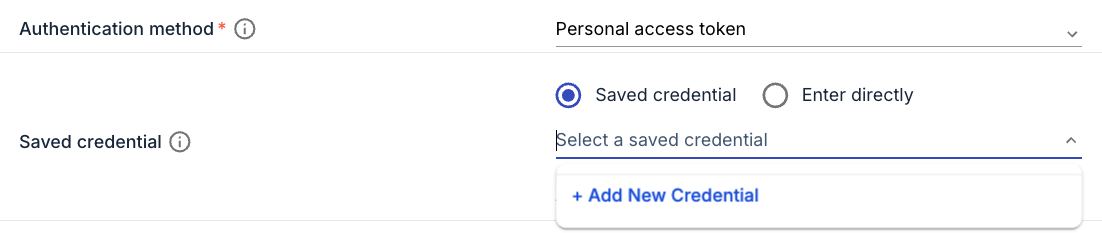
You can create a credential without leaving the collector form:
- + Add New Credential, at the foot of the credential list, opens Add new credential with the type already set to what the section accepts. A field the credential must match is filled in from the connection — the Azure section's Azure tenant ID. Enter a name and the values, then Create & Select.
- Save this token? appears under the last credential field once every field under Enter directly holds a value. It opens Save credential with those values filled in; check the name, then Save & Select. On a runtime plane that encrypts secrets, it appears only once you type the secret, because the portal never has the value of a secret already stored.
Either way, the connection itself is saved only when you save the form.
What happens when you save the connection:
- Trust3 checks that the credential is on this runtime plane, is of a type that fits the section's Authentication method or Classifier LLM provider, and, for Azure, is for the same tenant as the connection's Azure tenant ID.
- It then writes the credential's values into the connection's fields. A form or script holding an old secret cannot overwrite the credential's current one.
- The Azure tenant ID is never changed by a credential: it is the connection's identity, so it is only compared.
Changing the authentication method or LLM provider
If you switch to a method or provider that takes a different credential type — for example the classifier from OpenAI to Anthropic — pick a matching credential in the same save. Until you do, the picker shows "This credential does not fit the current selection. Select another saved credential." Switching Databricks to Entra ID workload identity clears the saved credential.
To switch back to direct entry, choose Enter directly and save. The fields keep the values they last received, and you can edit them from then on.
Export, import and delete
- Export includes which saved credential a connection uses; secrets stay redacted, as always.
- Import keeps the saved credential only if it exists on the runtime plane you import into and still fits the connection. Otherwise it is cleared and the import result says so.
- Deleting a connection releases its saved credentials immediately.
Rotate a credential
An edit always shows what it will restart before anything is saved.
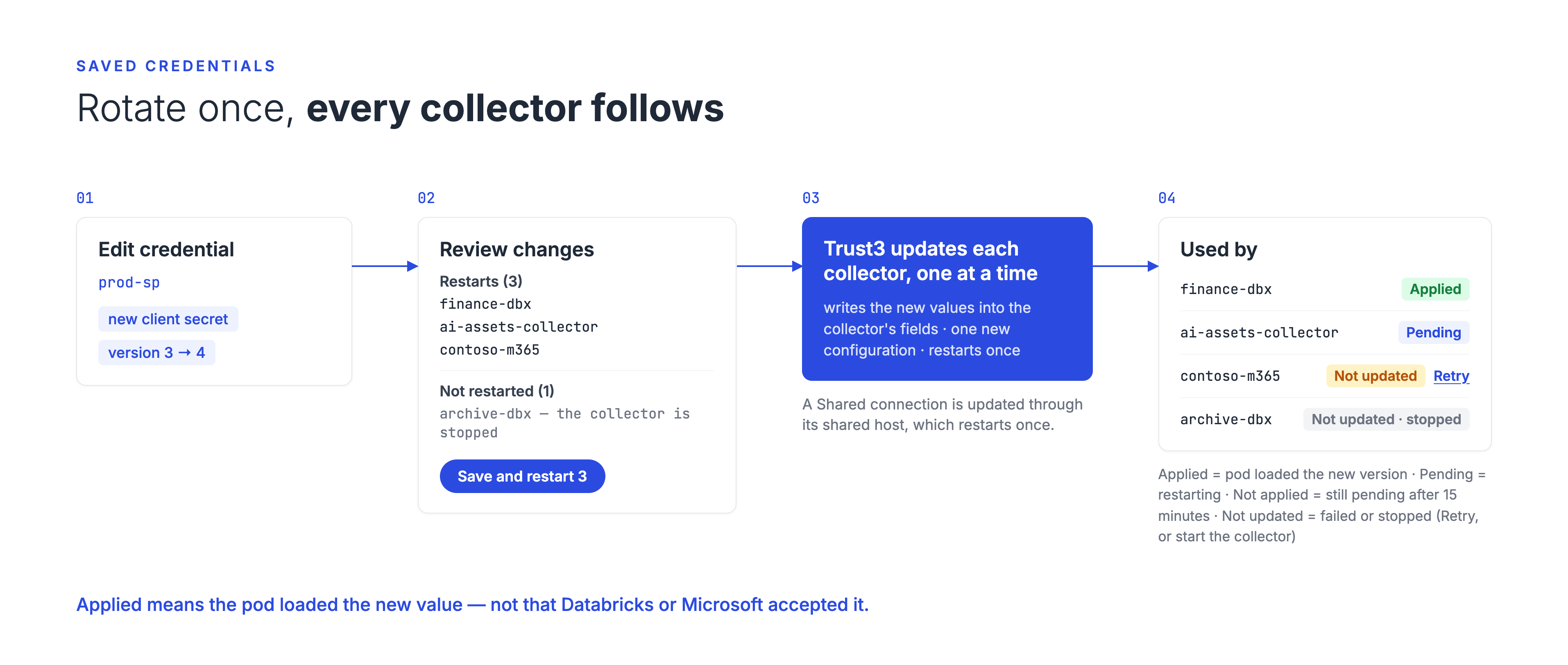
- On the Credentials tab, select Edit on the credential, change the fields, and select Review changes. Entering a new secret rotates it.
- Save changes to this credential? lists the fields that change and the collectors the save restarts, once each. Collectors it will not restart are listed with the reason — for example, a stopped collector.
- Select Save and restart N, or Save when nothing restarts. Back returns to the form.
Trust3 updates every collector before the dialog closes, which can take a while for a credential used by many collectors. Each collector gets one new configuration and restarts once, even when several of its sections use the same credential. Its other settings are not touched.
- These update collectors: a new secret, or a changed field.
- These restart nothing: renaming the credential.
- Shared connections are updated through their shared host, which restarts once.
If the request is interrupted, the change may still have gone through. The credential's details then open with a warning that begins "The save did not finish cleanly". Do not enter the secret again — that would rotate it a second time. Use Retry for collectors that are not updated.
What the states mean
| State | Meaning | What to do |
|---|---|---|
| Applied | Every running pod of the collector has loaded the configuration carrying this version. | Nothing. |
| Pending | Updated, but not every pod has loaded it yet: it is restarting. | Wait. A restart usually takes a few minutes. |
| Not applied | Still pending 15 minutes after the update. The collector is most likely not starting. | Check the collector's pod. A collector that does not start stops all its connections, not only the ones using this credential. |
| Not updated | The update into this collector failed, or it still holds an older version. | Fix the cause if one is named, then Retry. If it fails again with no cause named, contact Trust3 AI Support. |
- "Applied" is not "confirmed". It means the pod loaded the new configuration, not that Databricks or Microsoft accepted the new secret.
- A stopped collector is not updated, because updating would start it again. It shows Not updated with "the collector is stopped". When you start it, it starts with the credential's current values; no Retry is needed.
- Retry, on the credential's details, updates only the collectors that are not updated. Collectors already updated are not restarted.
Delete a credential
Delete asks you to confirm; it cannot be undone. A credential that a collector still uses cannot be deleted: a Can't delete dialog lists the collectors and sections that use it. Switch each of them to another saved credential or to Enter directly, save them, and delete again.
Runtime planes with an external secret store
On a runtime plane whose secret store is AWS Secrets Manager, Azure Key Vault, Google Secret Manager or a Kubernetes Secret, a saved credential does not hold the secret. It holds the key name of the secret inside the plane's store, exactly what you would otherwise type into the connection's secret field. Non-secret fields such as tenant ID and client ID are plain values on every runtime plane.
-
Put the secret in the plane's store under a key name of your choice, in the secret the runtime plane already uses. For example, on a plane whose store is the Kubernetes Secret
plane-secrets: -
Create the credential and enter the key name (
collector-entra-secret) as its secret.
| Store | The key name is |
|---|---|
| Kubernetes Secret | A key in the Secret's data |
| AWS Secrets Manager | A field of the secret's JSON value |
| Google Secret Manager | A field of the secret's JSON value |
| Azure Key Vault (a vault) | The name of a Key Vault secret in that vault, holding the value as a plain string |
| Azure Key Vault (a vault and secret) | A field of that Key Vault secret's JSON value |
Keep several keys in the secret
If the secret holds a single key, or is a plain string rather than a JSON object, the runtime plane returns that one value for every key name, so two credentials with different key names silently get the same secret.
Trust3 does not read your store, so it cannot tell whether the key exists. If a connection uses a key name that is not in the store, the collector pod does not start; its configuration init container stops with "Key '<name>' not found in secret". Add the key, then restart the pod.
Changing the secret:
- Change the value in the store and keep the key name: Trust3 does not notice. Each collector picks up the new value when its pod next restarts. To apply it now, open the credential and select Restart All Collectors (N), or Restart Collectors on its row. Every collector that uses it restarts once.
- Point the credential at another key name: edit the credential. Every collector that uses it is updated and restarts once.
While a runtime plane has any saved credential, its secret store cannot change to another kind — for example from Trust3's own encryption to a Kubernetes Secret. To change it, switch the connections to Enter directly, delete the credentials, change the store, then create the credentials again. Moving to another secret of the same kind is allowed; copy the keys into the new secret first.
Upgrading a runtime plane
- Auto Upgrade on: existing collectors get the Saved credential choice, set to Enter directly. Their values stay as they were. No collector restarts.
- Auto Upgrade off: nothing changes until you upgrade the runtime plane to 9.2.45.3 or later. That upgrade adds the choice to each existing collector, with no restart beyond the upgrade's own.
Nothing moves to a saved credential by itself. Switch collectors one at a time.
After the runtime plane's encryption key is rotated
When a runtime plane's encryption key is rotated, the runtime plane can no longer read saved credentials encrypted with the old key. Collectors that use them fail to read the secret until it is entered again. Edit each such credential and enter its secret again; the new version is copied into every collector that uses it.
The Credentials tab does not flag these credentials yet. Through the API, they show "keyRevoked": true — see Saved Credentials API. Runtime planes with an external secret store are not affected.
Next steps
-
Collector connections
-
Saved Credentials API