Collector Connections
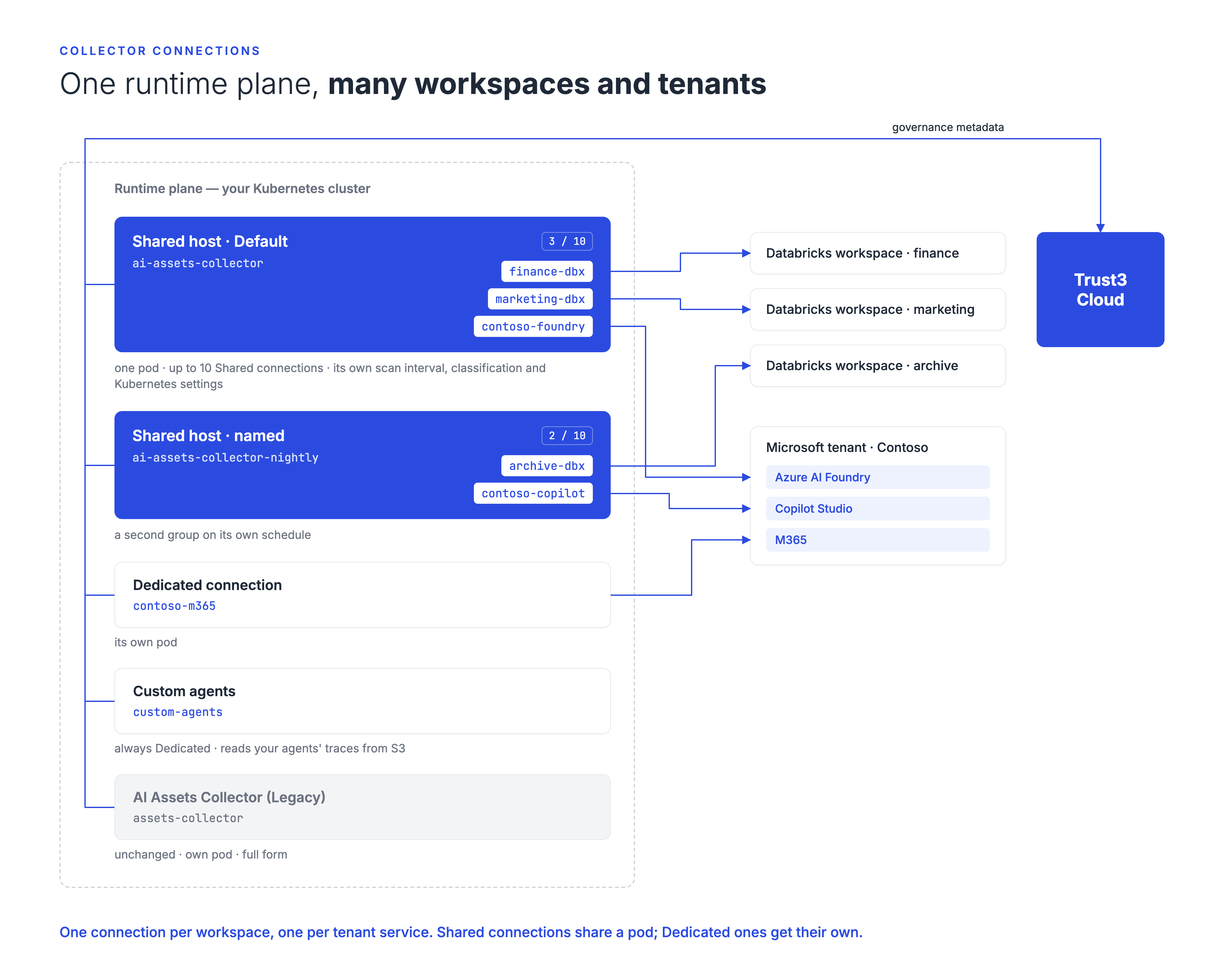
A connection is one Databricks workspace, or one service of one Microsoft tenant, that the AI Assets Collector scans on a runtime plane. You add each one on its own, and they can share one collector pod instead of each running its own.
Use connections when one runtime plane has to scan several workspaces or tenants — for example, a production and a development Databricks workspace, or the Azure AI Foundry projects of two business units.
Runtime plane release
Connections need a runtime plane on release 9.2.45.3 or later. On a runtime plane pinned to an older release, a connection is refused with "This runtime plane is pinned to release …". Upgrade the runtime plane, then create the connection again. The AI Assets Collector (Legacy) tile works on every release.
The collector tiles
Open the runtime plane (Settings > Runtime > your runtime plane), select the Collectors tab and click Add New. Available Connectors shows the AI Assets Collector tiles:
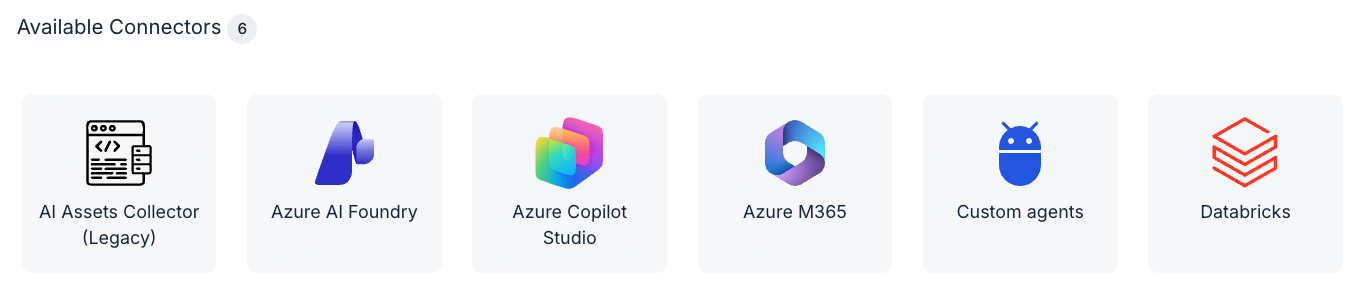
| Tile | What it creates | Default name |
|---|---|---|
| Databricks | A connection for one Databricks workspace | ai-assets-collector-databricks |
| Azure AI Foundry | A connection that discovers one tenant's Azure AI Foundry agents and collects their traces | ai-assets-collector-azure-foundry |
| Azure Copilot Studio | A connection that discovers one tenant's Copilot Studio agents | ai-assets-collector-azure-copilot |
| Azure M365 | A connection that discovers one tenant's M365 Copilot (Agent Builder) agents and collects Copilot interactions | ai-assets-collector-azure-m365 |
| Custom agents | A collector of its own for agents you build yourself. See Custom agents | custom-agents |
| AI Assets Collector (Legacy) | A standalone collector with the full form, as before connections existed. See Run Collector | assets-collector |
A connection is for one source. A Microsoft connection queries only its own service: an Azure AI Foundry connection never calls Copilot Studio or M365, so a service principal that can only read Foundry gets no errors for the others. To scan more than one service of a tenant, add one connection per service. They can use the same tenant and the same saved credential.
What each Microsoft connection needs
All three use a service principal of the tenant: tenant ID, client ID and client secret, or a saved credential of type Azure Entra Service Principal.
| Connection | Discovers | Collects | Access the service principal needs |
|---|---|---|---|
| Azure AI Foundry | Foundry agents and projects | Foundry agent traces (Enable Foundry trace monitoring, on by default) | Read access to the subscriptions and Foundry resources it should discover. See Azure Foundry. |
| Azure Copilot Studio | Copilot Studio agents in the tenant's Power Platform environments | Copilot interactions, when Enable interaction monitoring is on (off by default) | Access to the Power Platform environments (Dataverse). See Microsoft Copilot Studio. |
| Azure M365 | M365 Copilot (Agent Builder) agents, through Azure Resource Graph | Copilot interactions, when Enable interaction monitoring is on (on by default) | An Entra directory role that reads Power Platform resources. See Azure M365 Agents. |
A Foundry connection that finds nothing
Without read access to the Foundry resources, an Azure AI Foundry connection can show no assets rather than an error. When it finds nothing, check the service principal's access first.
Interaction monitoring reads the tenant's Copilot interactions from Microsoft Defender and Microsoft Graph. It needs the Graph application permissions ThreatHunting.Read.All, AiEnterpriseInteraction.Read.All and AuditLogsQuery.Read.All.
One connection per workspace and per service
Each workspace, and each service of a tenant, is read by one connection on a runtime plane, Shared or Dedicated. A save that breaks one of these rules is refused, and the form shows why under the field concerned.
| Source | Rule |
|---|---|
| Databricks | One connection per workspace on a runtime plane — on any shared host, or Dedicated, running or stopped. Hosts are compared without https://, letter case, a trailing /, a path, or the ?o= the browser adds. |
| Azure Copilot Studio, Azure M365 | One connection per tenant and service. A second Copilot Studio (or M365) connection for the same tenant is refused. |
| Azure AI Foundry | One connection per tenant and client ID. Two Foundry connections for one tenant are accepted when they use different client IDs, each a service principal with access to its own projects only. |
| Interaction monitoring | On for one Copilot Studio or M365 connection of a tenant. |
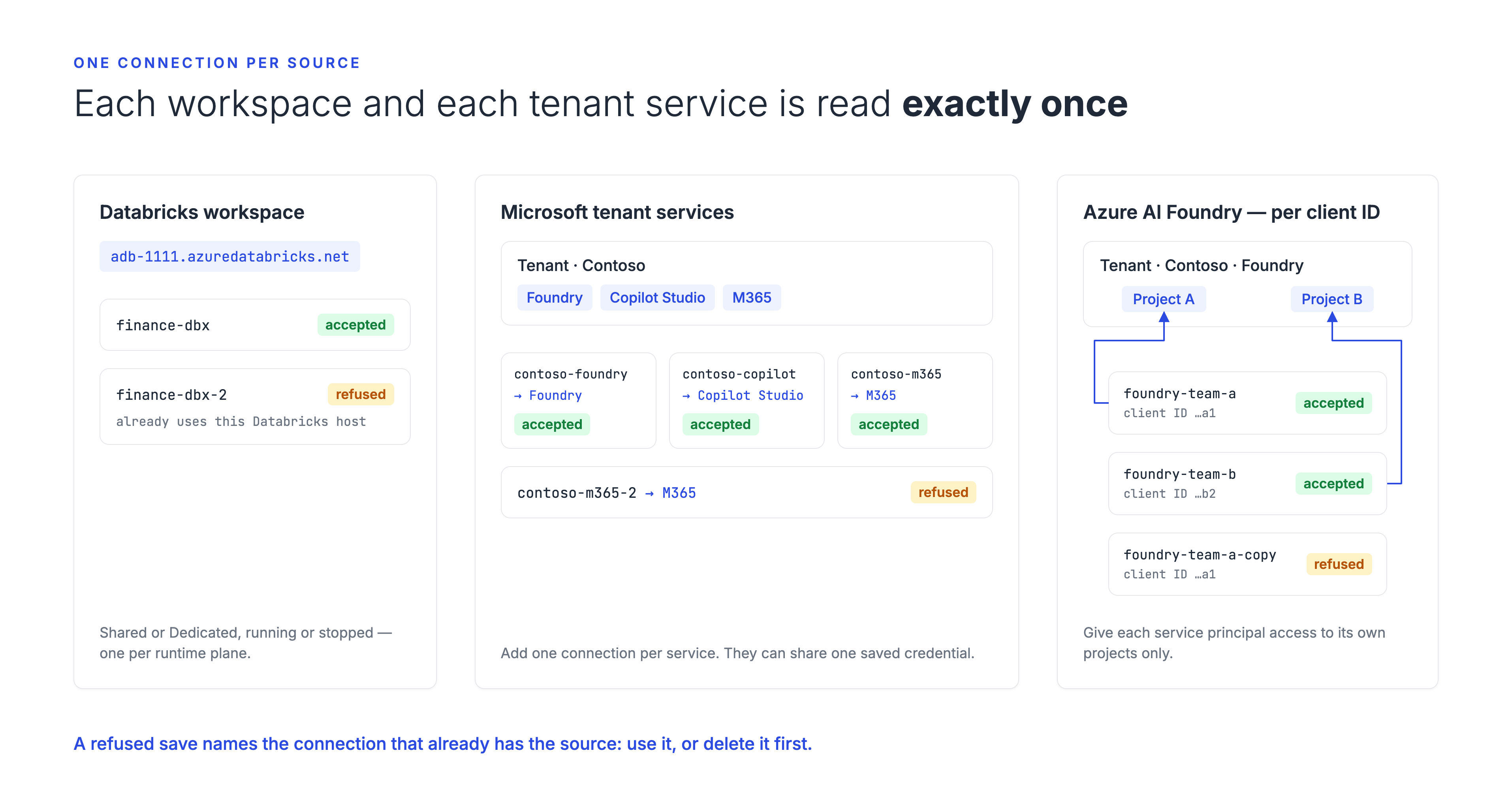
A refusal reads like "Tenant …'s … is already collected by the Shared connection …" or "The Shared connection '…' on this runtime plane already uses this Databricks host" ("Dedicated connection" for a Dedicated one). Use the existing connection, or delete it first.
Good to know:
- A connection whose discovery switch is off collects nothing and is not checked.
- Editing a connection is checked only for a service the edit turns on, so other edits — a secret rotation, tags — always save.
- A saved Azure credential's client ID cannot change after it is created, so editing a credential never makes two Foundry connections clash.
Give each Foundry connection its own projects
If two service principals can both see one Foundry project, both connections collect it. Scope each principal to its own projects.
Two connections on one Foundry resource both report its model deployments, which belong to the resource rather than a project. When one of those connections is deleted or loses access, the deployments can show as inactive even though the other connection still sees them, until a deployment changes. Where that matters, keep each Foundry resource on one connection.
Choose the Deployment Mode
Deployment Mode is on the BASIC INFO tab, after Name.
| Mode | What it means | Choose it when |
|---|---|---|
| Shared (default) | The connection runs inside a shared host, a system application that runs up to 10 Shared connections in one pod. The connection has no pod of its own. | Most connections. One pod scans many workspaces and tenants. |
| Dedicated | The connection gets its own collector application and pod. | A connection must not share a pod — for example, to keep one customer's credentials out of a pod that scans other tenants, or to give a large workspace its own resources. |
A Custom agents connection has no choice: it is always Dedicated.
The mode is fixed at create
To change it, delete the connection first, then create a new one with the other mode. Delete first because a workspace can have only one connection on a runtime plane, so a new connection to it is refused while the old one exists. The old connection's assets become inactive, and the new connection's scan starts from scratch.
Choose a shared host
A runtime plane can have several shared hosts. Each runs up to 10 Shared connections in one pod and has its own settings — scanner interval, trace classification and Kubernetes settings — so a group of connections can scan on its own schedule.
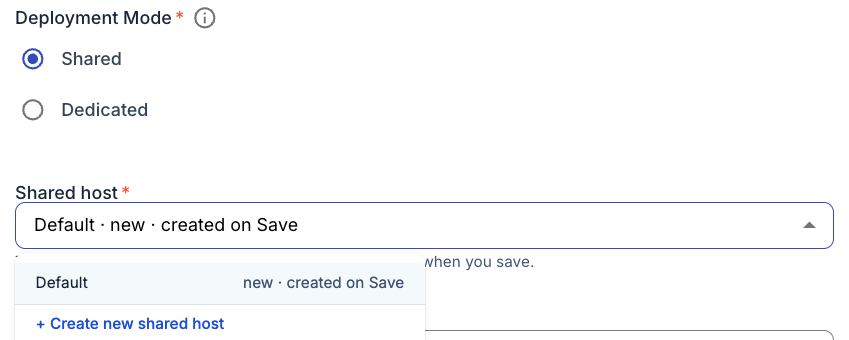
When you choose Shared, the Shared host list shows:
- Default first: the runtime plane's original shared host, ai-assets-collector. On a runtime plane with no shared host yet it reads "Default · new · created on Save", and saving the connection creates it.
- Then each named shared host, with how many connections it runs ("6 / 10"). Hover a host to see its description. A full host (10 / 10) cannot be chosen.
- Last, + Create new shared host. Give it a name (lowercase letters, digits and hyphens, up to 33 characters) and an optional description. It is created when you save the connection, named ai-assets-collector-<name>, and starts with the Default host's settings. Change its settings afterwards on its own page.
A named host never becomes the Default host. The host is fixed at create: to move a connection to another shared host, delete it, then create a new connection there.
An imported Shared connection always goes to the Default host, and the import result says so.
What the form shows
A Shared connection shows only its own section (Databricks or Azure) and the Custom Properties sections. There is no Kubernetes Configs card. The settings every connection on a host uses together are on the shared host:
- Open the runtime plane and select the System Applications tab. On a Trust3 AI Cloud runtime plane this tab appears once the plane has its first shared host.
- Open the connection's shared host — ai-assets-collector for the Default host. From a connection's row on the Collectors tab, View status takes you there.
- Set General (scanner interval), Monitoring (trace classification) and the pod's Kubernetes settings. Saving restarts that host's pod only.
A Dedicated Databricks or Microsoft connection shows the full form for its own pod — General, Monitoring and the Kubernetes settings.
Neither shows Custom Agents or Trace Ingester: those run only on a Custom agents connection, or on a Legacy collector.
What cannot change after create
- Deployment Mode
- Shared host
- Databricks host (Databricks) or Azure tenant ID (Microsoft). This is the connection's identity; to scan another workspace or tenant, add a new connection.
- The connection's type — the tile it was created from. An Azure AI Foundry connection cannot become an Azure M365 one; add a connection of the other type and delete the old one.
These fields show as disabled when you edit a connection.
Pause, delete and restart
Pause a Shared connection with its row's Enable/Disable toggle. A Shared connection has no pod of its own, so it has no stop or restart. Switched off, the shared host skips the connection on every scan and shows it as disabled; the assets it already found stay as they are. Switch it back on to resume. A paused connection still holds its workspace or tenant services, so a second connection to them is still refused.
Delete a Shared connection with the connection card's delete icon. The shared host stops scanning it straight away, and the connection's assets are marked inactive after 24 hours.
A Dedicated connection stops, starts and deletes like a standalone collector: its own pod stops, starts or is removed.
Each change restarts its shared host
Adding, editing or deleting a Shared connection restarts its shared host's pod, so every Shared connection on that host pauses while it restarts. Other shared hosts keep running. That is usually a minute or two, and up to about six minutes when the pod moves to another node and its storage has to move with it.
Delete a shared host from System Applications once it runs no connections. While it still runs some, the delete is refused with "This shared host still runs N connections". A shared host with no connections keeps running, and using resources, until you delete it.
When one connection fails
One bad connection does not stop the others. If a connection cannot start — for example, its credential is missing — the shared host leaves it out, logs an error naming it, and keeps scanning the rest. It tries that connection again on its next cycle, so fixing its settings is enough; no restart is needed.
Custom agents connections
A Custom agents connection is a collector of its own for agents you build yourself. It reads the agents' Langfuse / OTLP traces from S3, and can run the trace ingester that receives them.
- Always Dedicated. It runs in its own pod, never on a shared host.
- No workspace or tenant. It scans no Databricks workspace or Microsoft tenant. Add a Databricks or Microsoft connection for those.
- Add as many as you need. With the default prefixes, each one writes and reads its own traces, under
trust3/agent/traces/tenant=<tenant>/plane=<plane>/app=<application ID>.
Setup, the S3 prefix rules, and the endpoint hostname are on Collect Traces (OTLP).
Existing collectors are unchanged
A collector created from the AI Assets Collector (Legacy) tile — including every collector created before connections existed:
- keeps its own pod and its full form, Custom Agents and Trace Ingester included;
- keeps writing ingested traces under
trust3/agent/traces/tenant=<tenant>/plane=<plane>when its prefix is blank; - is never moved onto a shared host;
- can still edit Databricks host and Azure tenant ID;
- still covers Foundry, Copilot Studio and M365 together.
Nothing is migrated. A collector created before 9.2.45.3 also keeps its application name, which ends in -aias.
Move a workspace into a connection
- Add the connection for the workspace or tenant service.
- Remove that workspace (or tenant) from the old collector, or delete the old collector.
Do not leave a workspace in both
Trust3 checks a connection only against other connections, not against a Legacy collector. If the same workspace or tenant is in both, both scan it, and each one's clean-up marks the other's assets inactive.
Limits
| Limit | Value |
|---|---|
| Shared connections per shared host | 10. The 11th is refused: pick another shared host, create a new one, or create the connection as Dedicated. |
| Connections per Databricks workspace on a runtime plane | 1 |
| Connections per tenant service on a runtime plane | 1 (Foundry: 1 per tenant and client ID) |
| Shared host name | 1 to 33 lowercase letters, digits or hyphens |
A connection can't be named ai-assets-collector: that is the Default shared host's name.
Secrets saved through the API
On a runtime plane that encrypts its secrets, the portal encrypts a token or client secret before saving it. A Shared connection saved through the API with a secret that is not encrypted for this runtime plane is refused with "These secrets are not encrypted with this runtime plane's key".
- In the portal: enter the secret again.
- Through the API: encrypt each secret with the runtime plane's active key and send the encrypted value, as described in Saved Credentials API.
If such a connection is already saved, the shared host leaves it out, and after 24 hours its assets show as inactive. Saving the secret encrypted brings it back.
Messages you may see
| Message | What to do |
|---|---|
| "The Shared connection '…' on this runtime plane already uses this Databricks host" | That connection already has the workspace. Use it, or delete it before adding this one. |
| "Tenant …'s … is already collected by the … connection …" | That connection already reads this tenant service. Use it, or delete it first. For Foundry, use a different client ID. |
| "Another connection is being added to this runtime plane right now" | Try again in a moment. |
| "Another connection is being added to this shared host right now" | Try again in a moment. |
| "A connection's shared host is chosen when it is created and cannot be changed" | Delete the connection, then create a new one on the other host. |
| "A connection's type can't change" | Add a connection of the other type and delete the old one. |
| "The shared host '…' already runs 10 connections" | Choose another shared host, create a new one, or create the connection as Dedicated. |
| "A shared host or application named '…' already exists on this runtime plane, or is still being deleted" | Choose another name, or wait for the deleted host to finish going away. |
| "A shared host name must be 1 to 33 lowercase letters, digits or hyphens" | Shorten or fix the name. |
| "The chosen shared host is not a … shared host on this runtime plane" | It was deleted. Reload the page. |
| "This runtime plane is pinned to release …" | Upgrade the runtime plane to 9.2.45.3 or later. |
Next steps
-
Saved credentials
-
Prerequisites