Collector Scans (Sync Status)
Collector Scans shows whether your AI Assets Collectors are keeping your inventory in sync. For each connection, it shows when it was last scanned, whether the scan worked, and what the scan found new, modified or deleted.
Use it to:
- Confirm that a collector you just set up is working.
- Find a connection whose scans are failing.
- See what changed in your inventory, and when.
Who can see it
Collector Scans is available to the Admin and Account Admin roles.
How it works
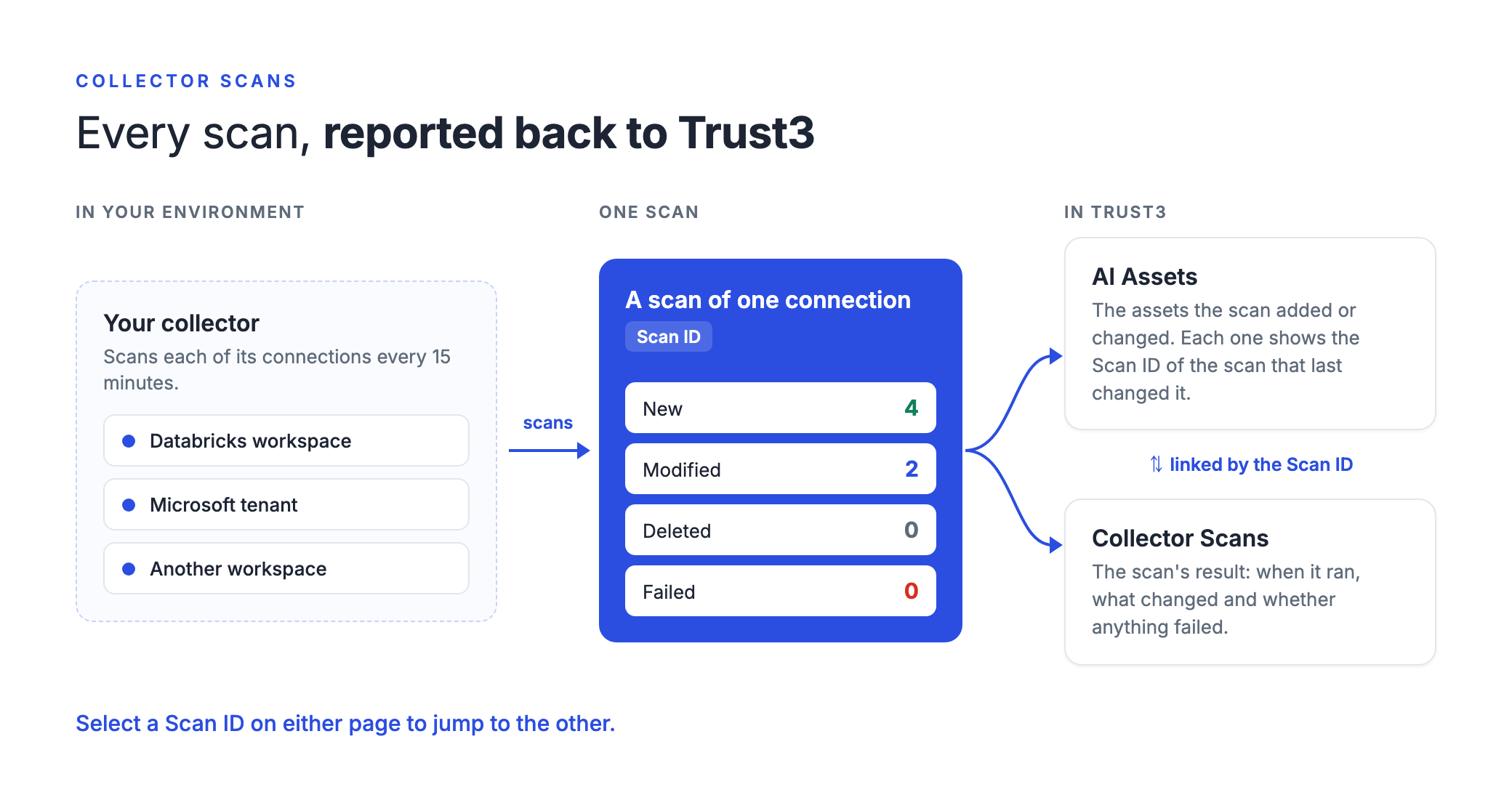
A collector scans each of its connections, such as a Databricks workspace or a Microsoft tenant, every 15 minutes. Each scan sends the new, modified and deleted assets to Trust3, then reports how it went. Collector Scans lists those reports.
Every scan has a Scan ID, and every asset the scan sends carries that ID. That lets you go from a scan to its assets, and from an asset back to its scan.
Check your collectors
-
Select Settings in the sidebar, then select the Collector Scans tab.
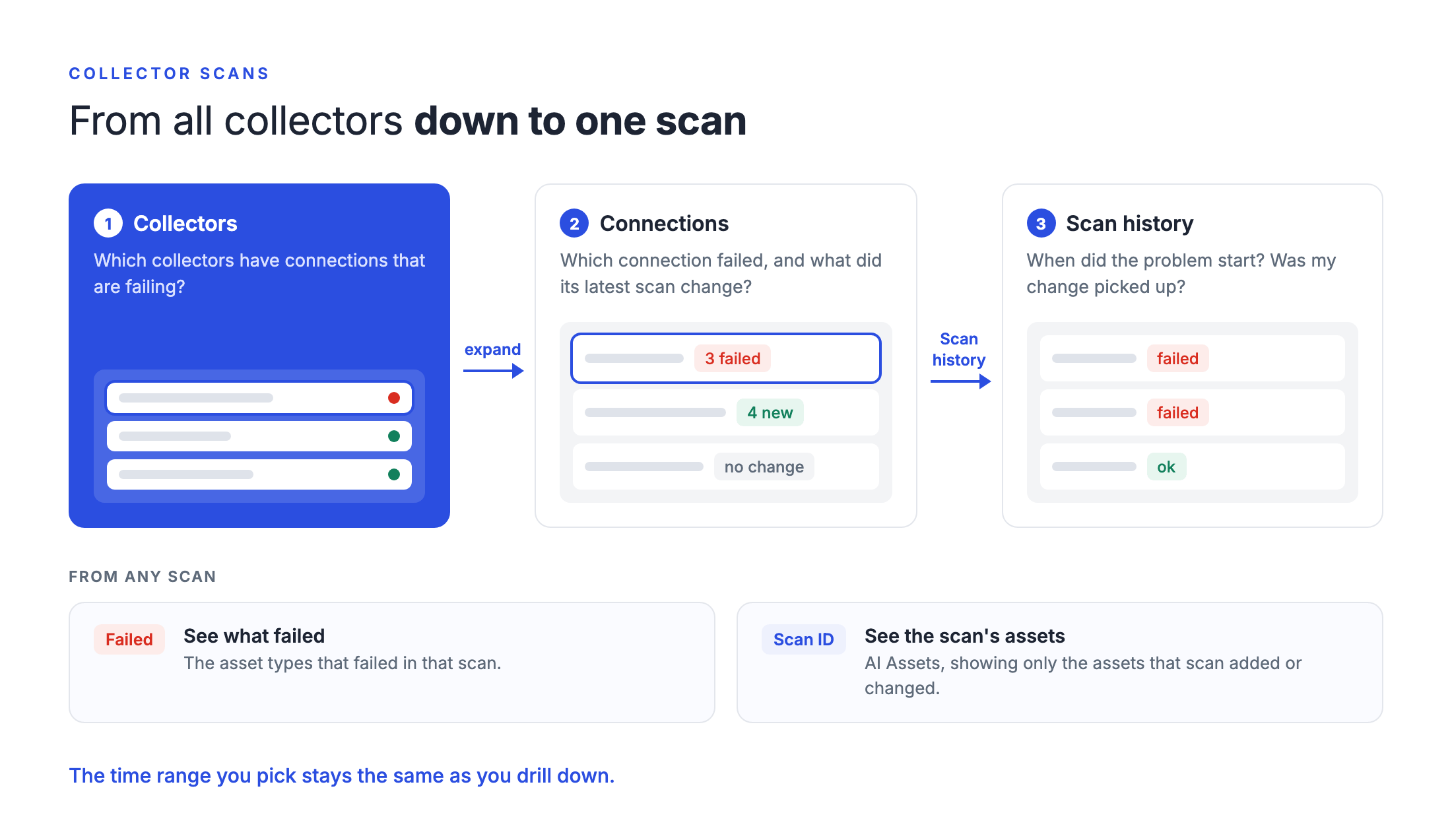
The page lists your collectors, with the ones that have failing connections first. It shows the last 24 hours by default.
-
Expand a collector to see the latest scan of each of its connections. Select View All to see every connection of that collector.
- On a connection, select Scan history to see all of its scans, newest first.
Read a scan
| Column | What it shows |
|---|---|
| Last Scanned | When the scan finished. |
| Scan Results | How many assets the scan sent successfully, and how many failed. |
| New, Modified, Deleted | What changed in the source since the previous scan. Hover over a number to see it by asset type. |
- A scan with any failure counts as failed. Select the red Failed count to see which asset types failed.
- Most scans show 0 in every column. That's normal: nothing changed since the previous scan.
Filter and search
- Time Range: 24 hrs (the default), 1 week, 1 month, or a custom range within the last 90 days. The range stays the same as you drill down.
- Show only collectors or scans with failures, or only one platform or runtime environment.
- Search by name. In a collector's connections, you can also paste a Scan ID to find that one scan.
Go from a scan to its assets, and back
- From a scan to its assets: Select a Scan ID. AI Assets opens and shows only the assets that scan added or changed.
- From an asset to its scan: Open the asset's details and select its Scan ID. Collector Scans opens on the scan that last changed the asset.
Each asset also shows when it was First Detected and Last Updated, and you can filter the AI Assets page on both. See Filter AI Assets.
How long scans are kept
- Scans that changed something or failed are kept, so an asset's Scan ID always leads to its scan.
- Scans that changed nothing are kept for 7 days.
- Collector Scans shows up to the last 90 days.
Troubleshooting
| Problem | What to do |
|---|---|
| No collectors found | Set Time Range to 1 week. A new collector shows up after its first scan, about 15 minutes after it starts. Check that the collector is running; see Run Collector. |
| A collector or connection is missing | Widen the time range, and check in Settings > Runtime that the connection's discovery is on. A collector from a release before Collector Scans doesn't report its scans: upgrade it. |
| A connection keeps failing | Select the red Failed count to see which asset types fail, then check the platform's prerequisites, for example Databricks. |
| You don't see Collector Scans | You need the Admin or Account Admin role. Ask an administrator. |
Related documentation
- Run Collector: set up a collector.
- Collector Connections: connect the workspaces and tenants a collector scans.
- Filter AI Assets: find assets by when they were first detected or last updated.